

Set up your masjid's prayer-time screens, step by step
You can do it yourself with a TV and a small Google TV device.
- 1
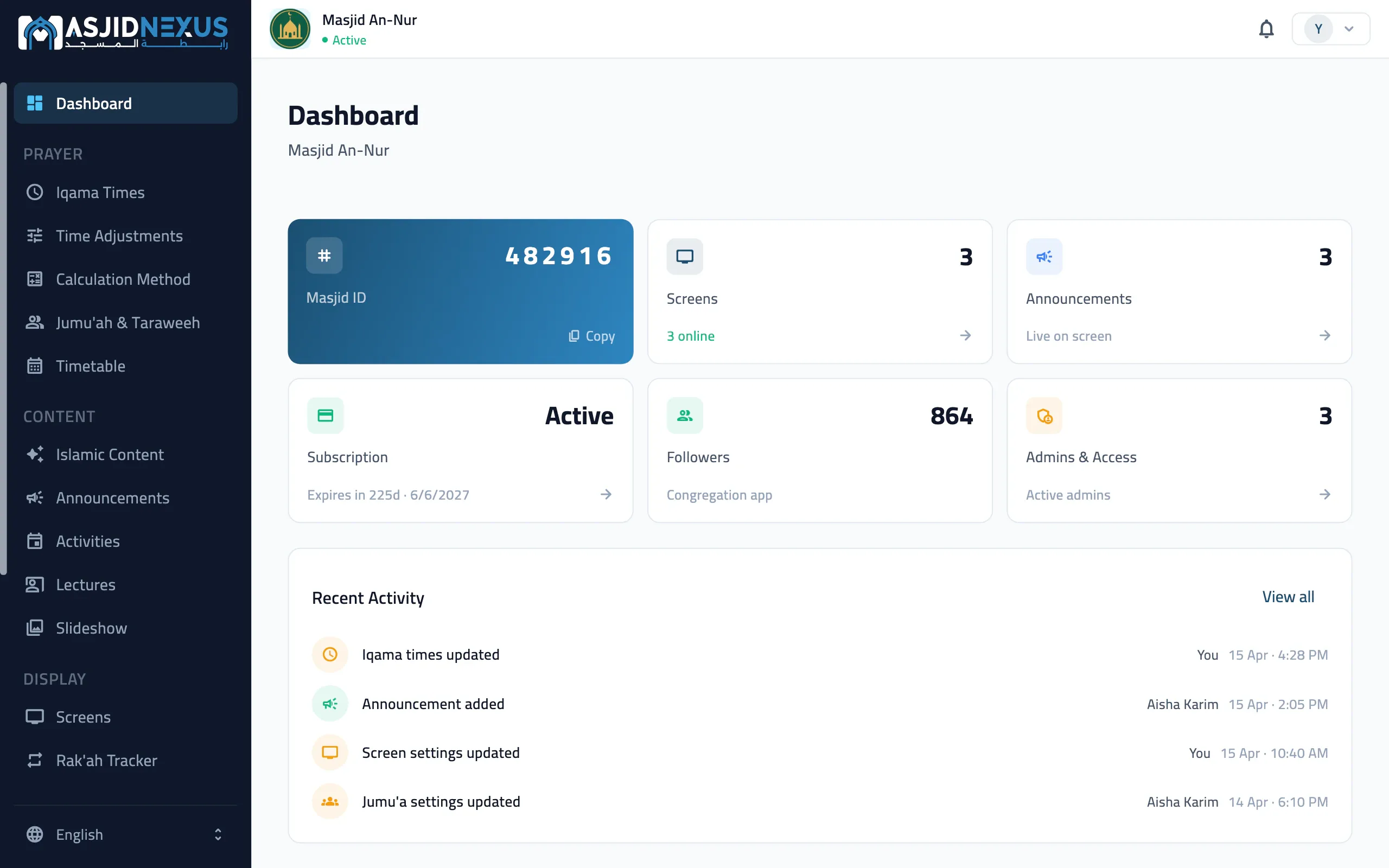
Create your masjid
Sign up for the 30-day free trial, with no card needed. Find your masjid on the map, and your portal is ready.
- 2
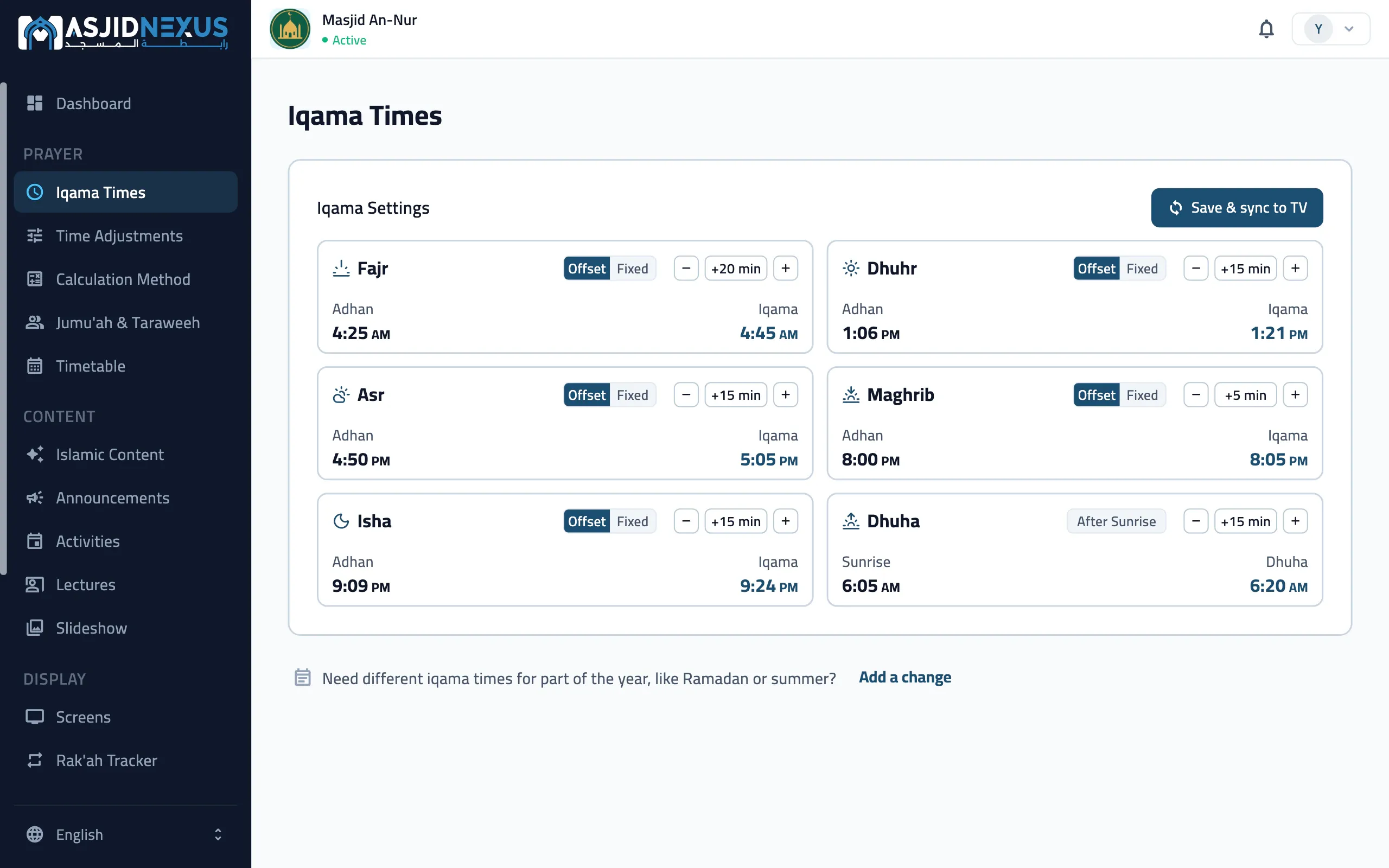
Check your prayer times
Your prayer times are calculated straight away, with iqama times to start from. Check them, adjust anything you need, and press Save.
- 3
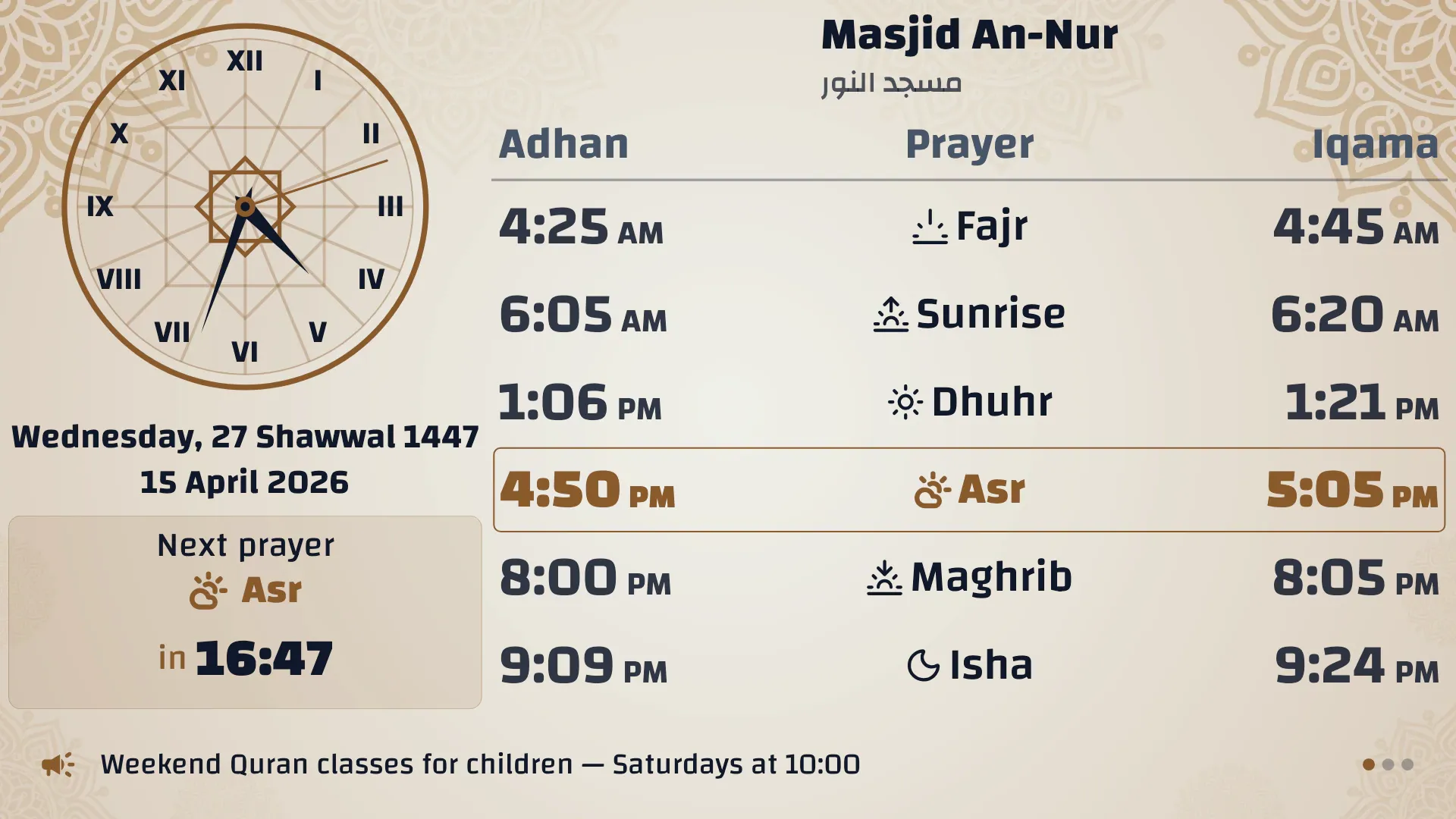
Choose how your screens look
Start from a ready-made design or lay out your own, and see exactly what the TV will show before you publish.
- 4
Plug in a Google TV device
Plug a Google TV stick or Android TV box into the TV's HDMI port, or use a TV with Google TV built in. Install the MasjidNexus TV app and open it.
- 5
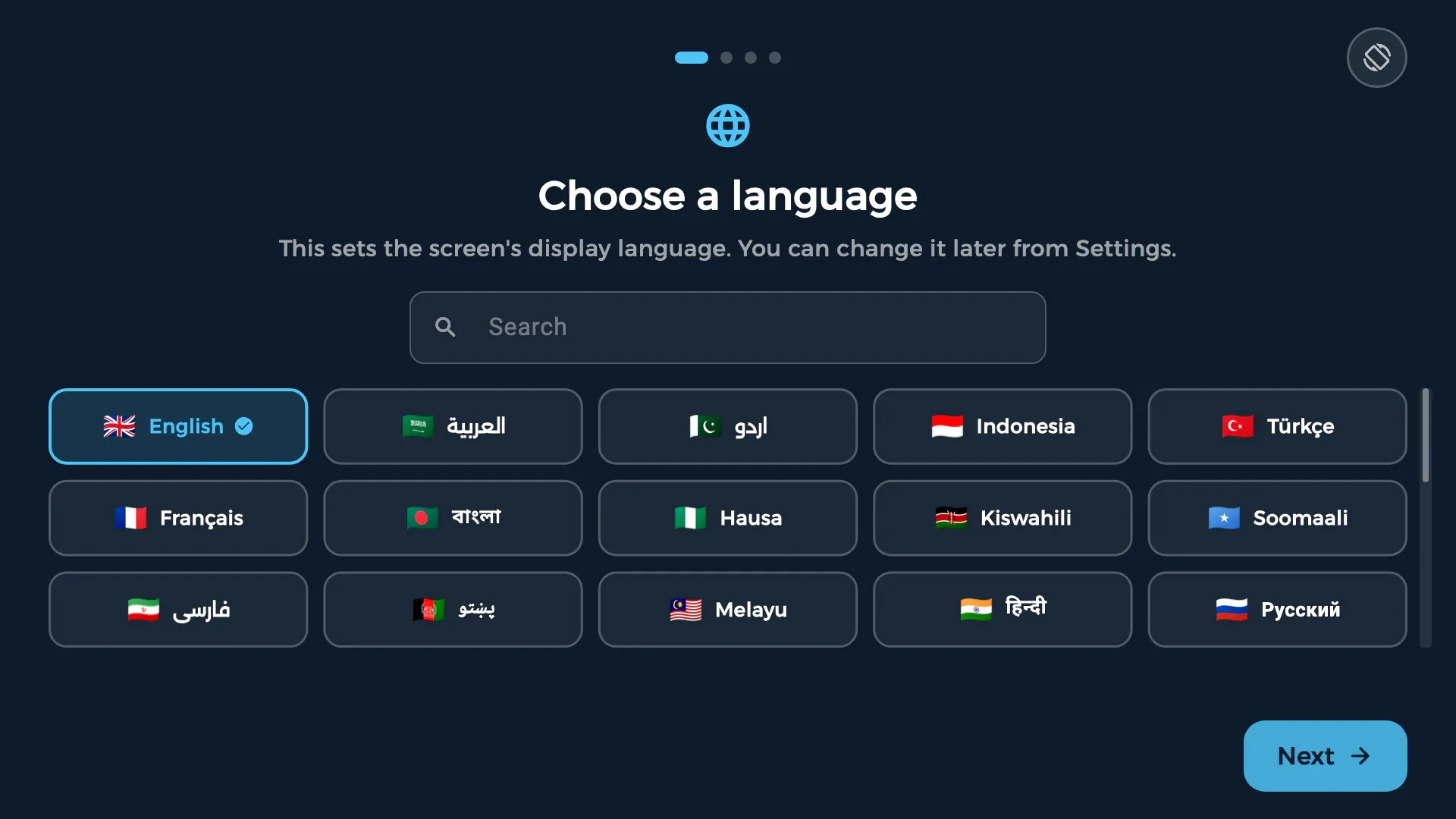
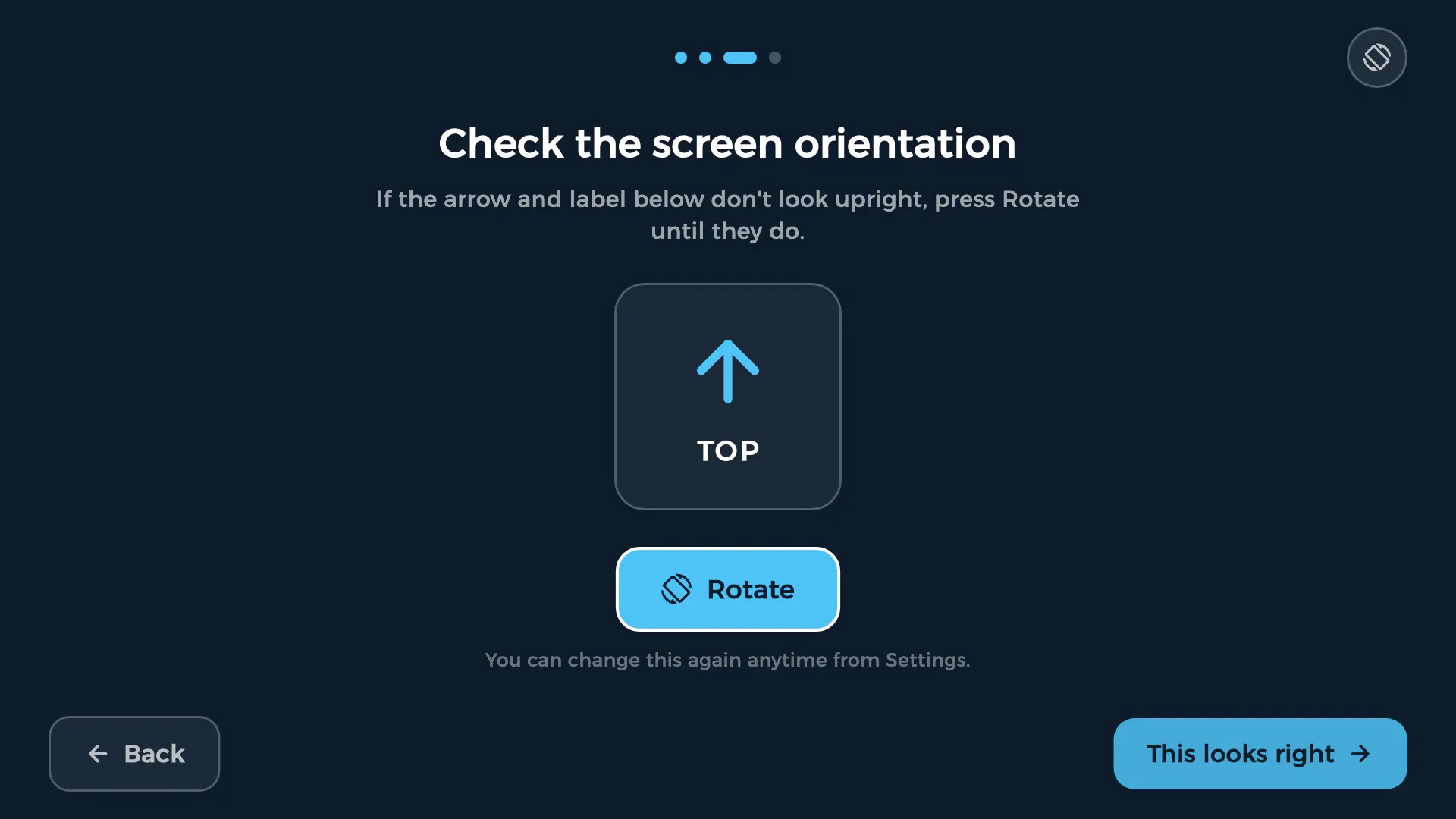
Choose the language and orientation
Pick the screen's language, then landscape or portrait, to match how the TV hangs.
- 6
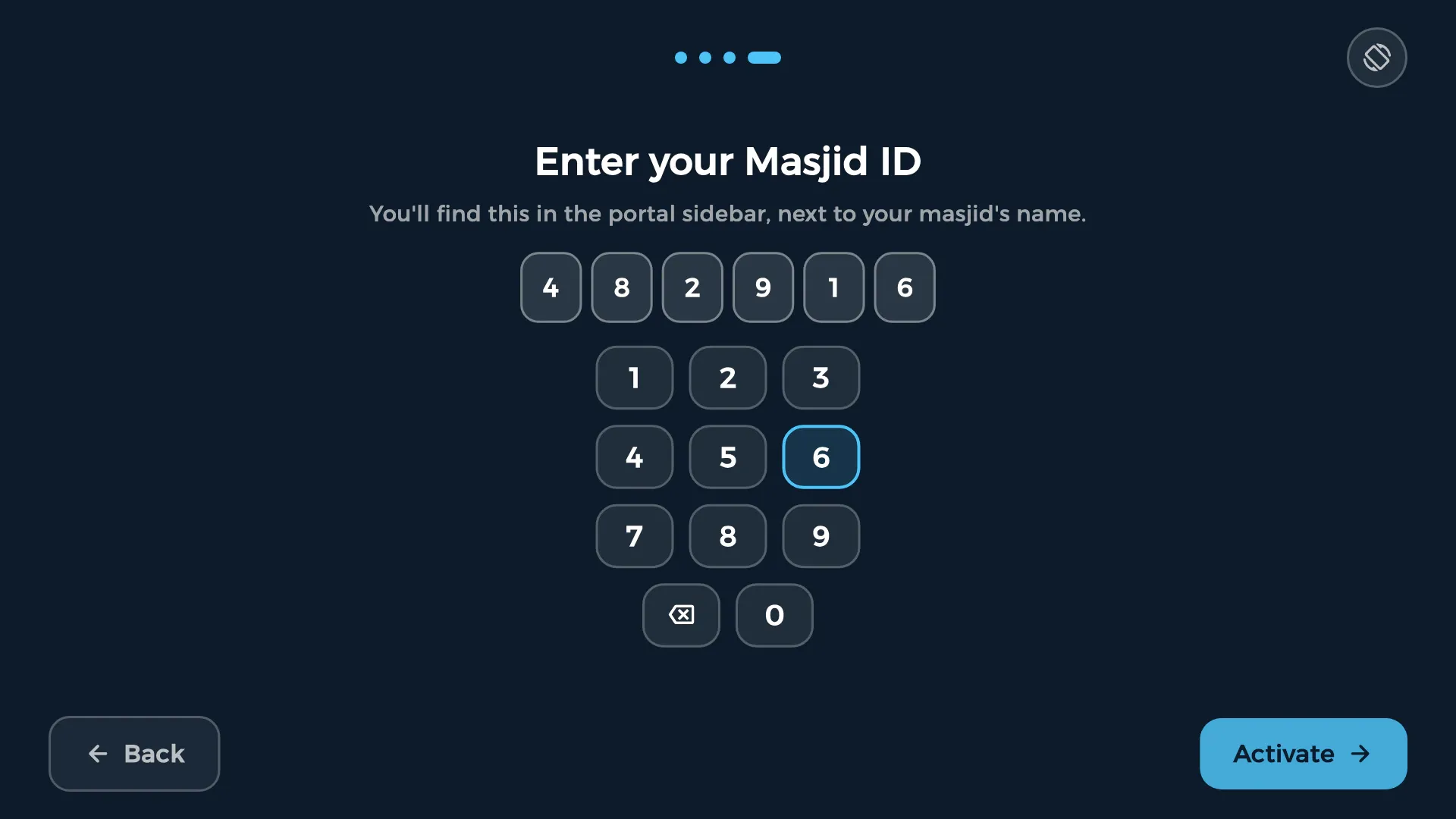
Enter your Masjid ID
Type your 6-digit Masjid ID. The screen starts showing your times and appears in your portal by itself. Repeat for each TV.
- 7
Bring your congregation in
Print the QR poster, turn on the app's QR code on your screen, and share your masjid's link in your community groups.


What you need
- A TV or monitor
- As many as you like, with an HDMI port, landscape or portrait.
- An Android TV or Google TV device
- Or a TV with Google TV built in.
- Wi-Fi or a network cable
- For updates. The screen keeps working offline.
- A wall mount (optional)
- For portrait, one that holds the TV upright.
Tips from setup
- Allow the app to "display over other apps" so it starts by itself after a power cut.
- Hold Back on the remote to open the app's settings.
- Screens that stay on all day can dim or blank at night, set from the portal.
Need a hand?
Tell us about your masjid and we'll help you set up.
- 30 days free
- No card needed
- Cancel any time